Set Border Size Of Desktop Windows
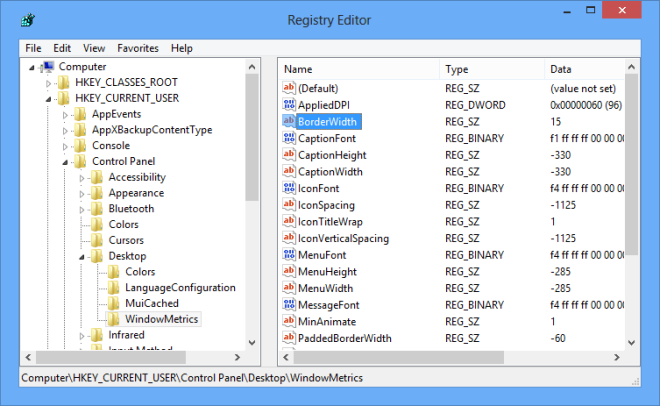
You may already know that Microsoft has dropped the Aero, and Windows 8 wraps windows in non-transparent borders. This move was aimed at making the operating system faster and more efficient by removing heavy UI elements that consume too much of system resources. You can still change the color of Windows borders to match your theme, but since the transparency is no more there, large borders mean that more screen space will be blocked by the active window. By default, there is no simple way to set a custom border size, however, you can change the border size of windows from the Windows registry. To change the border size, first open Windows Registry Editor and locate the following registry key.
HKEY_CURRENT_USER\Control Panel\Desktop\WindowMetrics
Now, look for the “BorderWidth” key and open it. By default, the value is set at –15. You can choose any value from 0 – 50 for the windows borders.
TKB:1025